As of 1 January 2024, the KNLTB has stopped issuing plastic magnetic-strip membership cards and has switched to a digital membership card, which can be found in the KNLTB ClubApp.
For our club, this means that we have switched to a different way of booking courts, whereby you no longer need to swipe your plastic membership card through a magnetic stripe reader. Instead, you use the KNLTB ClubApp in conjunction with a QR code on the booking board to book a court.
On this page, we explain how booking new sessions using the ClubApp works, and we answer some frequently asked questions.
Step-by-step guide to digital sign-out
Below you can read how to submit your entry online.
Click on the steps below to view more information and examples.
1. Go to the noticeboard at the club.
Bookings start at the booking board at the club. The booking board can be found in Sportcafé de Bruijnerie, on the right-hand side next to the bar.
If there is a queue at the booking board, we ask you to stick to the order of the queue. That way, the booking process will be as fair as possible.
2. Open the KNLTB ClubApp on your mobile phone.
Grab your mobile phone and open the KNLTB Club App.
Don’t have the KNLTB ClubApp on your mobile phone yet? Download it from the Google Play Store or Apple App Store (see frequently asked questions).
Before you can book a court, you must first log in to the KNLTB ClubApp.
3. Click on ‘Play’ at the bottom of the page, then click on ‘Book a court’; a current list of courts will appear.
In the KNLTB ClubApp, first go to ‘Play’ (at the bottom), then go to ‘Book a court’ (at the top).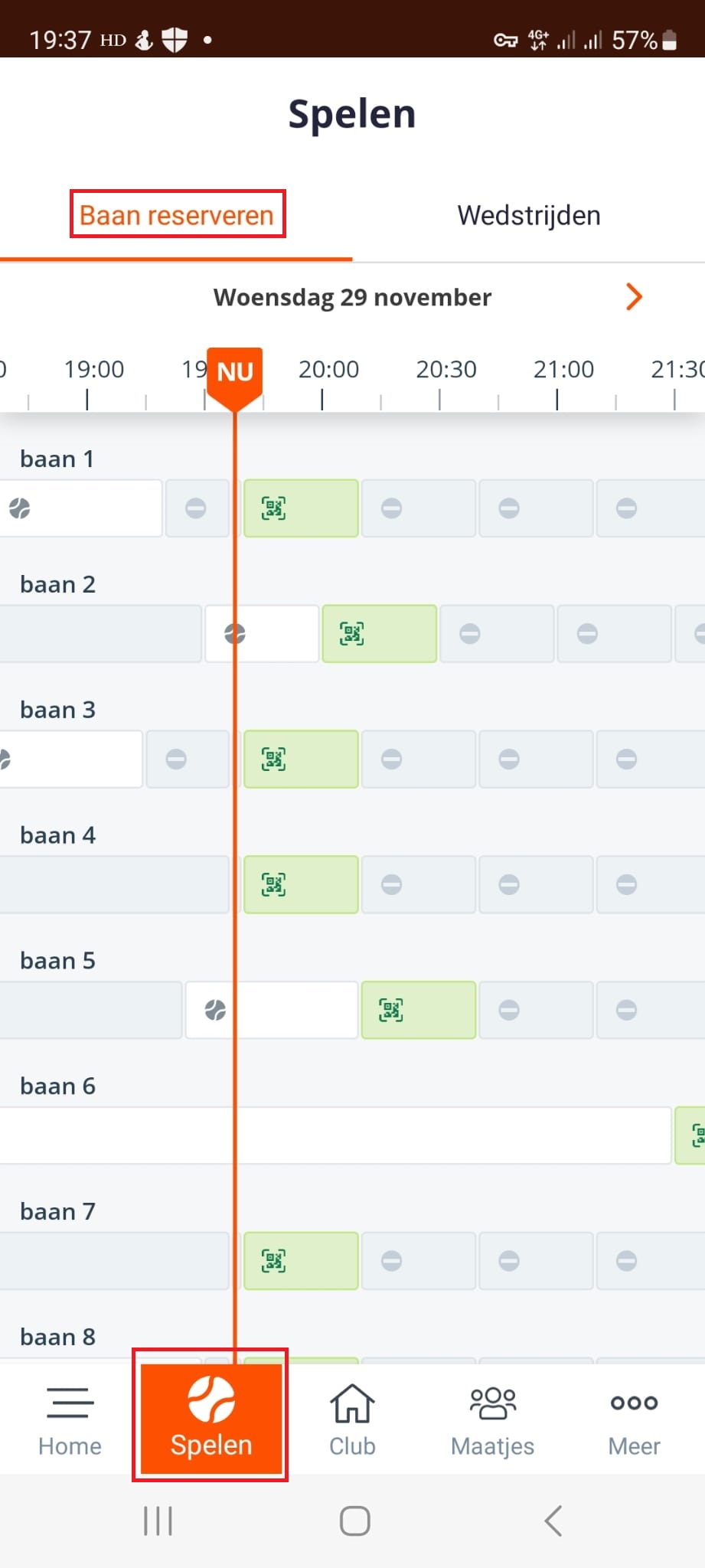
4. Check which court is available. Click on the QR code for the court you wish to book.
A free track can be identified by a track marked with a green square and a QR code. 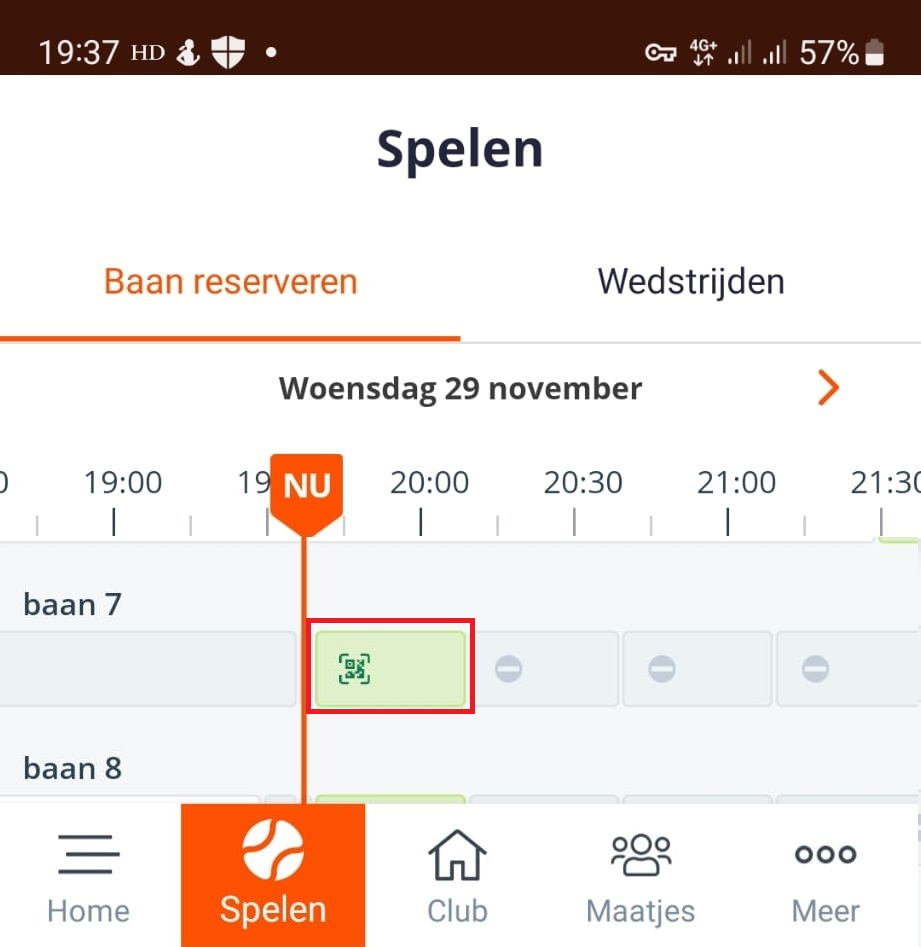
5. Click on ‘Log in’. A QR code scanner will now open in the app.
You can now see the selected course and the tee-off time.
The standard waiting time is 30 minutes. This time is automatically extended to 45 minutes when, in the next step, you add three other players (and are therefore waiting with four players).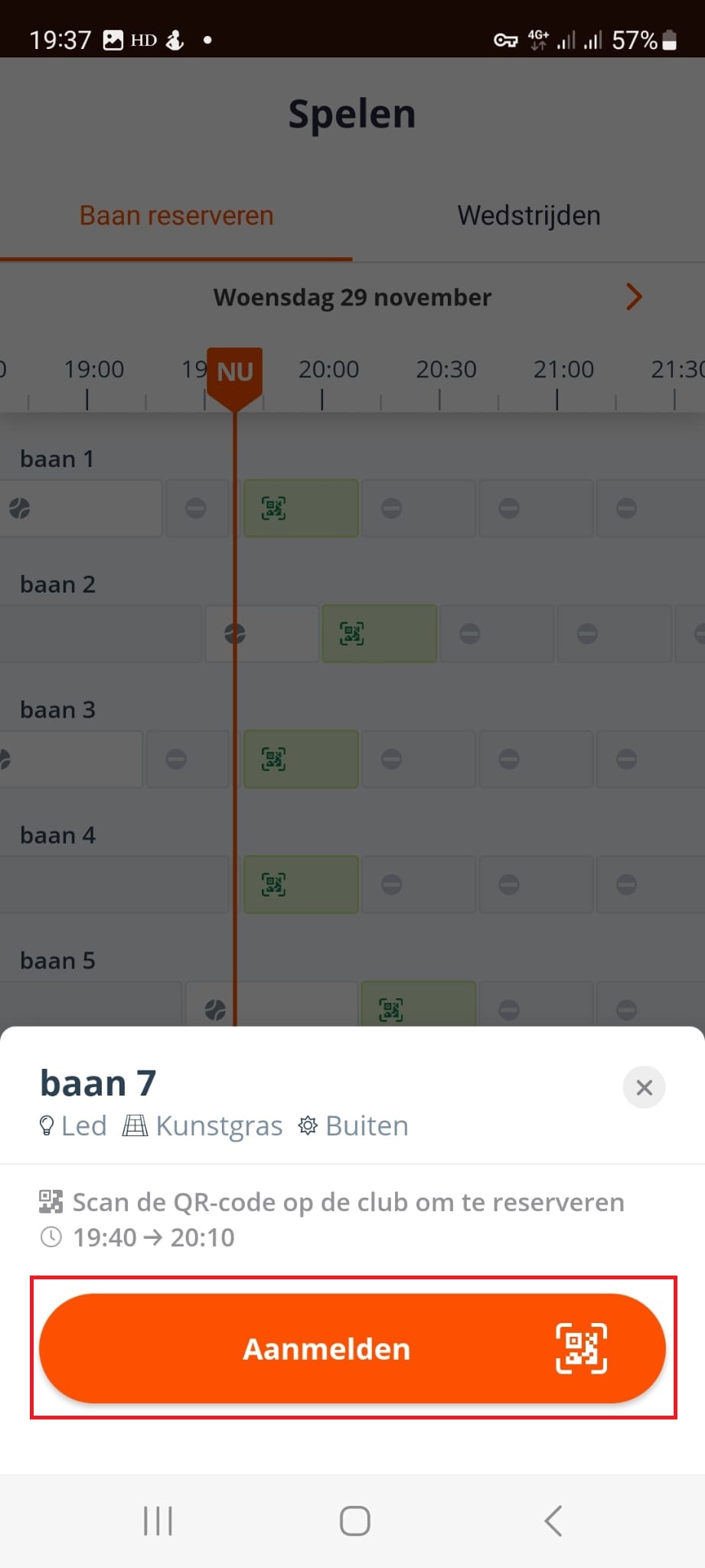
After clicking ‘Log in’, a QR code scanner opens on your mobile phone.
6. Scan the QR code on the notice board.
Use the QR code scanner accessed via the KNLTB ClubApp to scan the QR code on the booking board.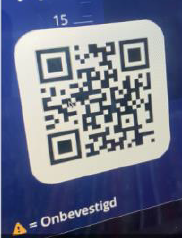
The QR code changes every hour.
7. Find and select the players you want to add.
You can now add the other players. There are a few ways to do this.
By far the easiest way is to click on ‘Add player’.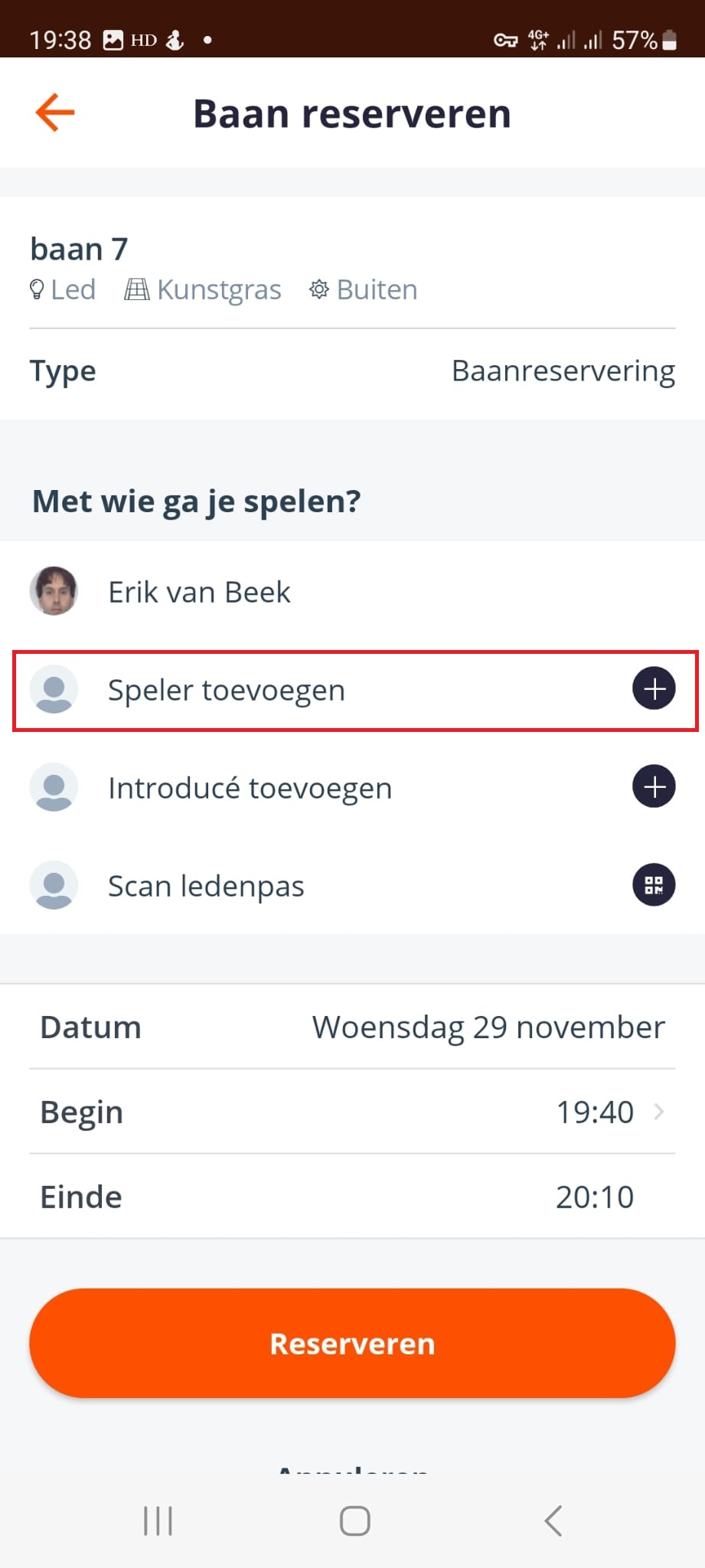
You can then search for players by name:
8. Click on ‘Book’ to confirm your choice of court.
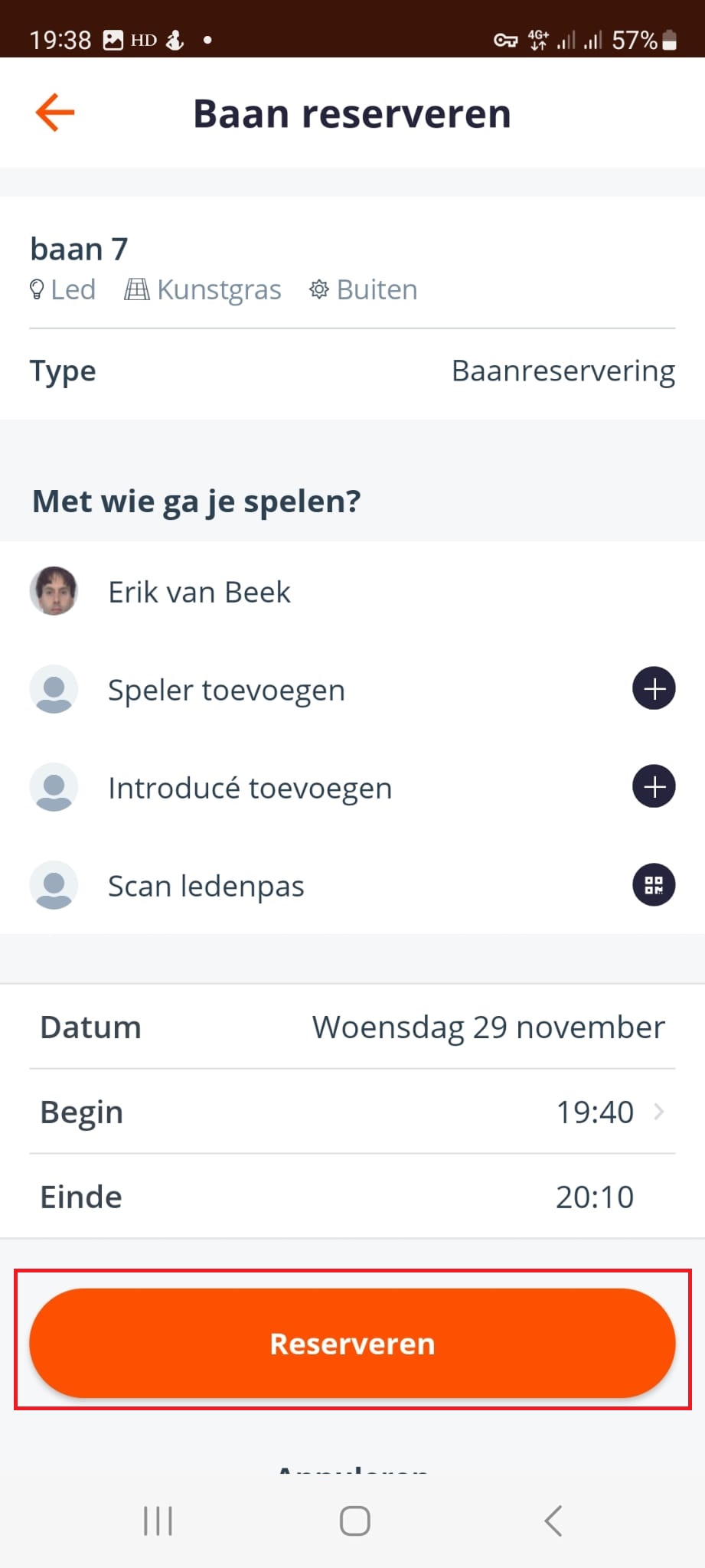
9. The track has been set up!
Congratulations! The court has been successfully strung. You can start playing.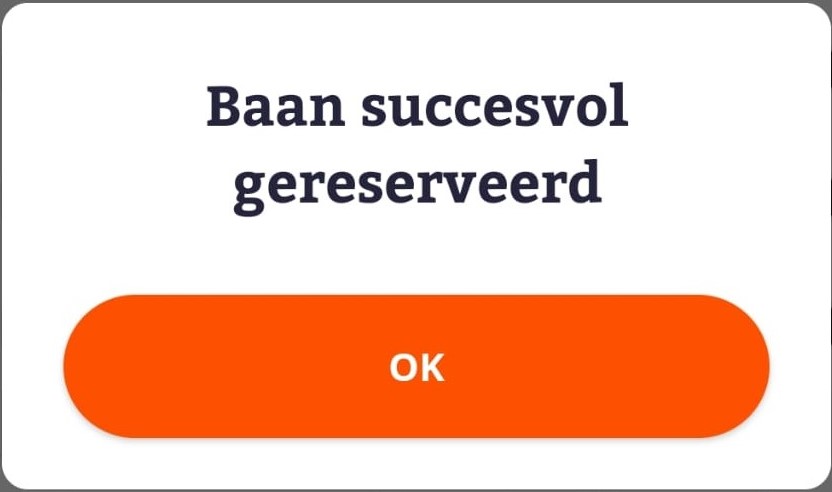
More detailed instructions can be found here: Digital checkout – TV Kontakt Manual
Or watch the following videos from the KNLTB:
Frequently asked questions
Below you will find a number of frequently asked questions. If your question isn’t listed here, please send an email to cr@tvkontakt.nl
KNLTB ClubApp
How can I download the KNLTB ClubApp?
You can download the KNLTB ClubApp via:
Google Play Store (for Android / Google):
Apple App Store (for Apple):
To ensure you can continue to play tennis properly, it is important that you use the latest version of the KNLTB ClubApp. Turn on automatic updates for the app, or update the app regularly yourself.
I am unable to create an account or log in to the KNLTB ClubApp.
When you open the KNLTB ClubApp for the first time, you must first log in.
The first step is selecting the club. Search for: 'TV Kontakt' (spaces are important):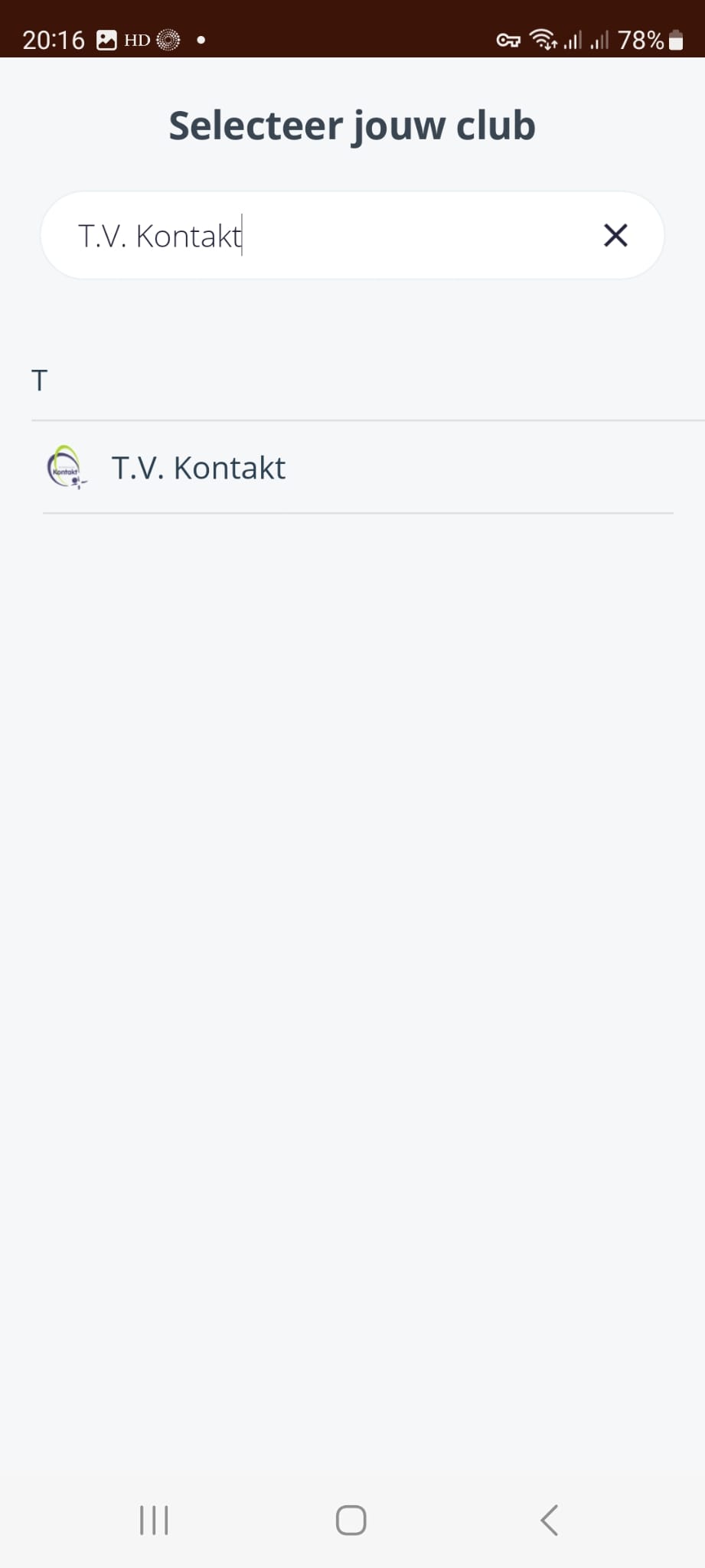
The second step is entering your membership number and your password: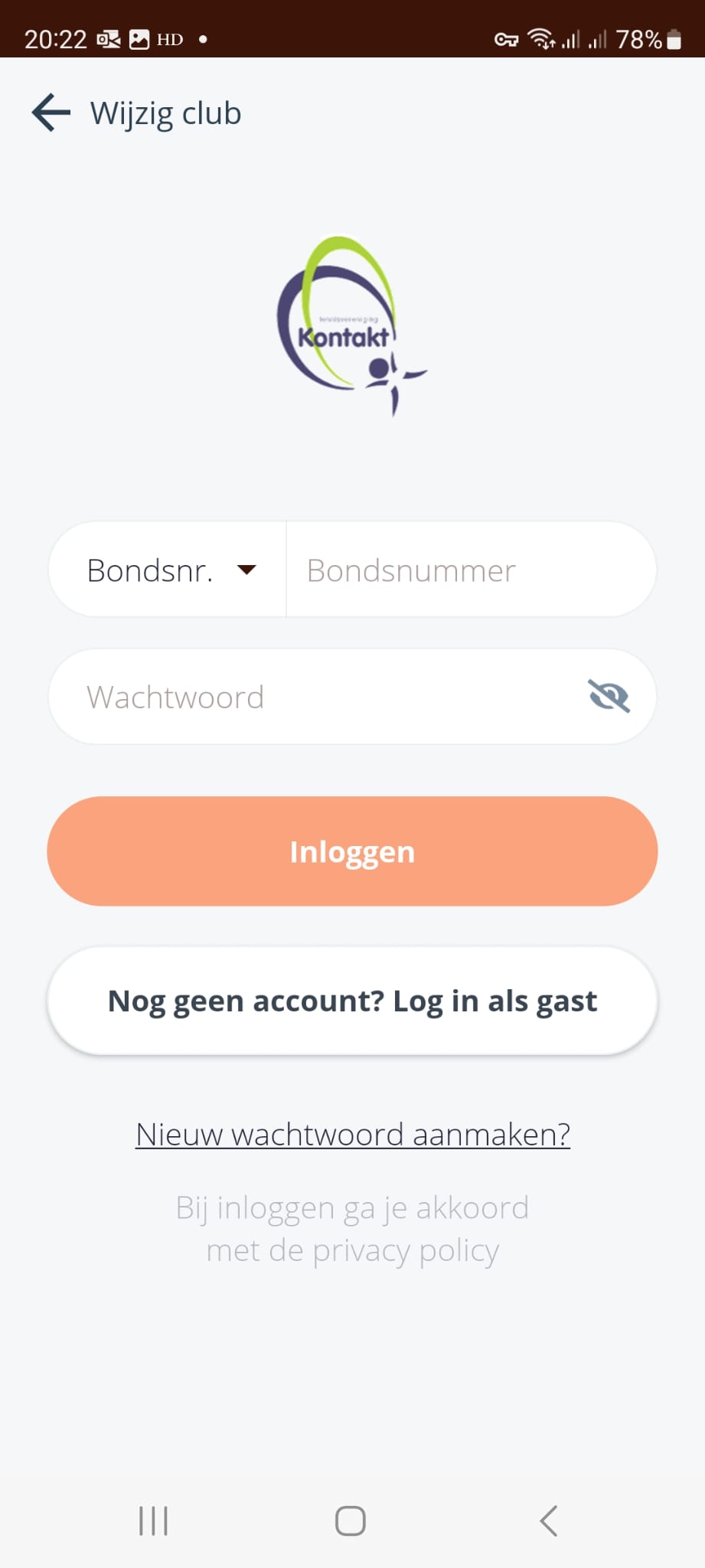
You can find the membership number on your 'old' membership card, or another member can look you up by name under 'Buddies' in the KNLTB ClubApp and then pass on the membership number.
Are you using the account for the first time? Or have you forgotten your password? Then click on 'Create new password'. When creating a new password, enter the email address that is also known to the membership administration.
For questions about logging in or creating an account for the KNLTB ClubApp, you can contact ledenadministratie@tvkontakt.nl.
Depend
Until when can I still hang out with my plastic membership card?
At this moment, that is not yet clear. The KNLTB will stop issuing plastic membership cards as of January 1, 2024, but it is not yet clear when they will discontinue booking using plastic cards. For the time being, it is therefore still possible to book via the magnetic strip reader, but we encourage you to start getting used to the new system with the ClubApp and the QR code on the booking board.
Do I need to throw away my old card if I can check in digitally?
Preferably not! We would like to ask you to keep the plastic card. It can help with 'offline booking' if there is a malfunction with the ClubApp or the booking board. It is also handy for the toss. For new members, who will no longer receive a plastic card starting January 1, 2024, we are looking for an alternative solution. Furthermore, you naturally want the card because you are a proud member of this wonderful club.
I have a very old phone, no phone at all, or I have forgotten my phone. Can I still play tennis then?
Yes, that is possible!
Currently, at least one player must carry a mobile phone with the KNLTB ClubApp. That player can add the other players while booking a court by searching for them in the ClubApp. The other players do not need to do anything at this time.
Even if the KNLTB makes 'checking in at the club' possible in the future, a paper version of the QR code from the digital membership card can be printed to check in.
We do encourage as many members as possible to use the KNLTB ClubApp.
Can I also book a court from home?
At this moment, remote booking is not yet possible at our club. Currently, bookings can only be made at the club (KNLTB ClubApp + Booking board).
This is a deliberate choice presented by the board to the members during the 2023 General Meeting. At a later stage, it will be re-examined whether 'hanging out remotely' is something that suits our association.
How can I easily add other players when hanging out?
The easiest way to add players is by searching for them in the ClubApp. You do this by selecting 'Add player' and clicking on it. Next, you can enter the name of everyone who is a member of the association.
Tip! If you look up someone in the ClubApp via the 'Buddies' tab, you can mark that player as a 'Favorite' by clicking the star in the top right corner of the person's profile. This way, you can create a list of people you often play with, and they will appear first when you want to add players to book a court.
I am a member of multiple associations. How can I select the right association to visit?
It is possible to switch clubs, but at the moment it is still quite cumbersome. You will first have to log out of the KNLTB ClubApp and then log back in with the correct club. See the KNLTB Club support article for more details: How can I log in to multiple clubs?
How can I book a court if there is a problem with the ClubApp or the booking board?
If the digital system is down, you can switch to the same manual system used for the toss. Plastic 'court sheets' are located in the bottom left corner of the booking board, and there are toss cards that can be written on with a marker. This way, play can still take place even if the digital system is down.
How can I join the toss if I no longer have a plastic card?
For new members without a plastic membership card, we have blank toss cards ready. The toss cards can be written on with a marker by the toss master and erased afterwards (just like a whiteboard). We would like to ask members who still have a plastic membership card to keep it in any case.
The ClubApp shows time slots of 30 minutes. Am I allowed to play for 45 minutes if I have four players?
That's right! Fortunately, the system recognizes this automatically. Once you select a time slot, you can then add players. If a fourth player is added, the time is automatically extended to 45 minutes. With fewer than four players, the time remains 30 minutes.
Error messages
How is it possible that the ClubApp indicates that no courts can be booked, even though courts are available?
Sometimes the ClubApp indicates that no courts are available, even though this is clearly not the case. In such instances, there is not a single court with a green QR code. This problem needs to be investigated further, but it appears to be related to the standard five-minute 'time blocks'. For example, if you book a court at 18:00, 18:05, or 18:10, you may experience this problem. If you try again one minute later, for example at 18:01, 18:06, or 18:11, it works. We will investigate this issue further and ask KNLTB Club Support for a response.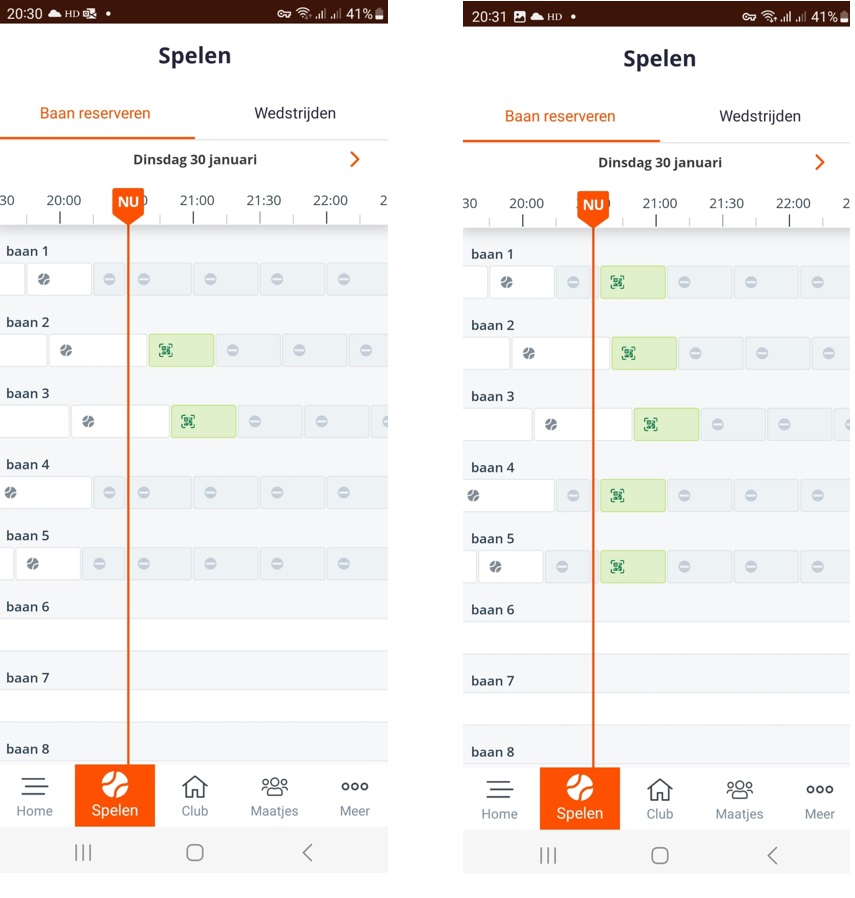
I receive a message that the reservation is not allowed until 0 minutes before the desired time.
Currently, the booking process is set up with five-minute time blocks. This allows for a quick rotation. As a result, you also have a relatively short amount of time to complete the reservation. The system looks at the start time when the playing time would begin. For example, if you wanted to start playing at 18:00 but started the booking process at 17:58, you only have two minutes to complete the reservation. If you are unable to do so within that time, you will receive the error message below: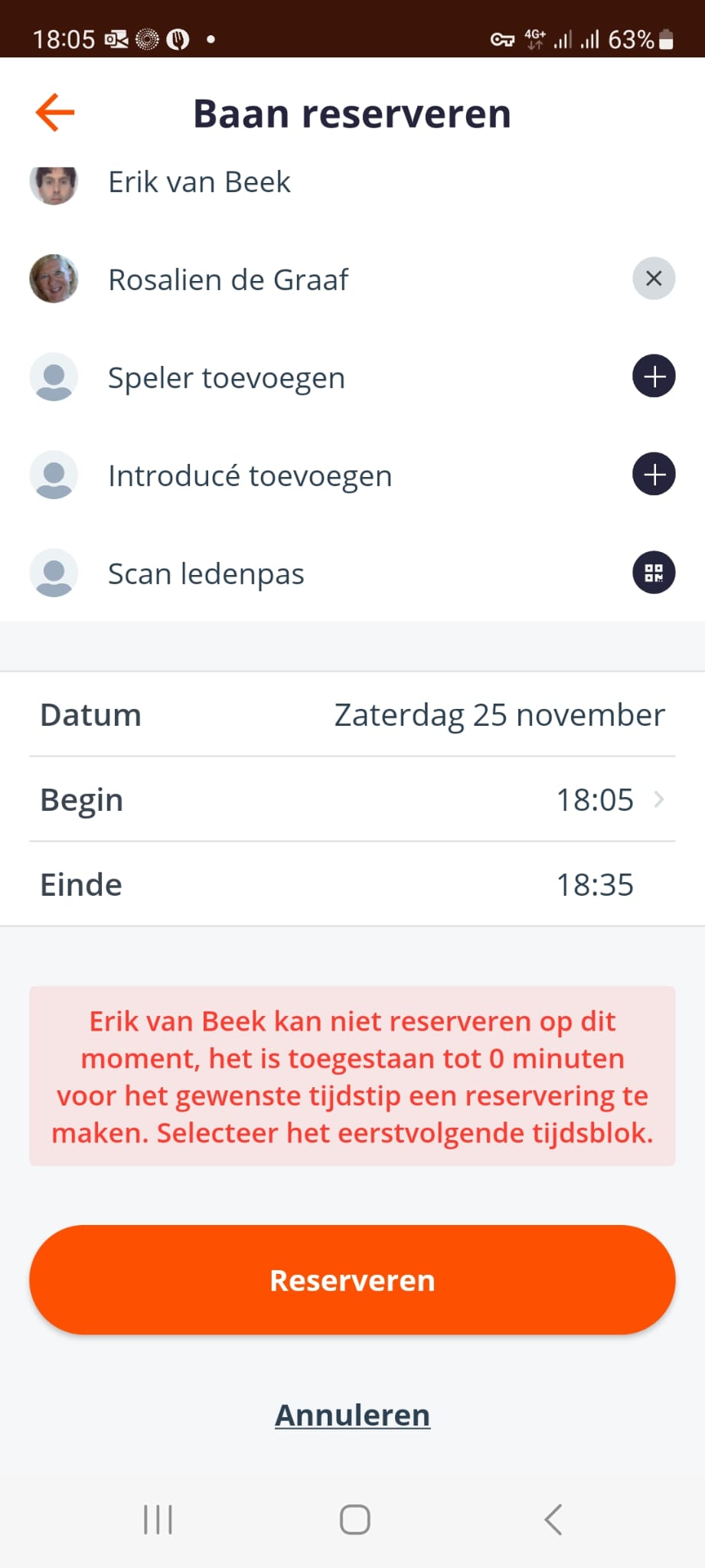
Unfortunately, in this case, you have to click 'Cancel' and try again.
We are going to look for a solution.
Other questions
Should you have any further questions, or ideas for improvement to make digital booking even easier? Please let us know via cr@tvkontakt.nl.